
Well, maybe if you’re one of the thousands of Thunderbird IT administrators, you already know.
Thunderbird is a great addition to the Mozilla family of utilities, but like it’s brother FireFox, there’s no Group Policy support to mass-configure your users and computers.
If you’ve got zillions of desktops, how are you going manage things like:
- Update behavior (turning it off, so users aren’t prompted)
- Ensure Thunderbird is always the default mail client?
- Ensure that spell-check is turned on?
- Ensure Anti-virus protection is turned on?
- Prevent users from picking up web cookies?
… or anything else that’s important to your Thunderbird configuration?
Answer: Without PolicyPak, you’ve got no enterprise-way to deliver these settings and lock down Thunderbird. Watch this video to get a handle on the problem and where PolicyPak can ease the pain.
Our solution isn’t a mere “ADM” template, it’s a true Group Policy extension, with powerful management capabilities. PolicyPak can deliver and enforce Thunderbird settings – the “industrial strength” way you need to using Group Policy.


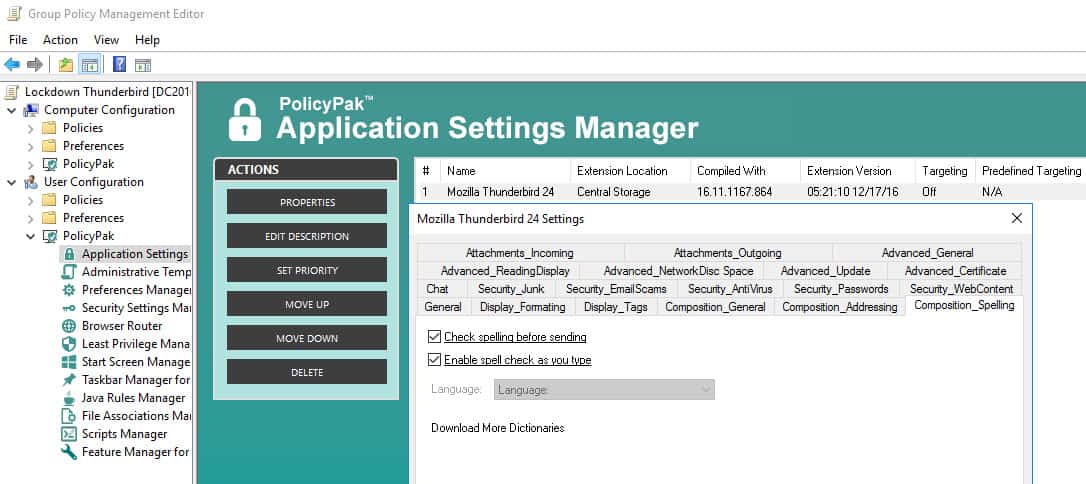
Without PolicyPak, you’ve got no way to do this uniformly and ensure your settings. Users won’t know what “secure” or “correctly configured” means – only you do. So be sure to set Thunderbird up correctly using Group Policy.
Besides, once you’re using PolicyPak to manage Mozilla Thunderbird, you’ll also get to manage all your other enterprise desktop applications the same way:Firefox,Java, WinZip,and any custom applications you have. They’re 100% included – absolutely free.
It’s all included when you’re a PolicyPak Professional customer.
PolicyPak was designed by Microsoft MVP, Enterprise Mobility Jeremy Moskowitz – who “wrote the book” on Group Policy, runs GPanswers.com, and lives and breathes Group Policy and enterprise software deployments and desktop lockdown.
When you’re ready to get serious about managing Thunderbird using Group Policy, PolicyPak is ready for you.
Manage Thunderbird using Group Policy and PolicyPak Video Transcript
Hi, this is Jeremy Moskowitz, Microsoft MVP, Enterprise Mobility and Founder of PolicyPak Software.In this video, I’m going to show you how to manage Thunderbird using PolicyPak.
Let’s go over a couple of areas that you probably want to control using Thunderbird but there’s really no good way to do it except for PolicyPak. Let’s go ahead and check it out. Let’s start off with “Composition,” and let’s go over to “Spelling.” Now you probably want to make sure your users “Check spelling before sending” and also “Enable spell check as you type.” That’s great, but if it’s not set, how do you set it en masse?
Let’s go over to “Security” and “Anti-Virus.” This thing isn’t checked by default, “Allow anti-virus clients to quarantine individual incoming messages.” That seems pretty important and something you probably want to deliver and also enforce and lockdown.
Let’s go over to “Advanced” and “General.” You probably want to “Always check to see if Thunderbird is the default mail client on startup.” If a user unchecks that and clicks “OK,”what does that mean? That means it’s a call to the help desk for you to figure out why Thunderbird isn’t working anymore in the way you expect.
If we go to “Advanced” and go to “Update” here, this is yet another one of those things. If you’ve got “Thunderbird” and it’s “Installed Add-ons” set to “Automatically check for updates to:”people get popups, they get confused, more calls to the help desk and you are not in control. How are you going to manage all of the security and individual settings on all these? That is what PolicyPak does.
Let’s go ahead and click “OK.” We’ll close all this, and let’s use PolicyPak to do the magic. For all of our “East Sales Desktops,” let’s go ahead and “Manage Thunderbird using PolicyPak.” We’ll right click. We’ll click “Edit…” here. For all of my computers here – and I only have one for fun – I’ll use “PolicyPak/Applications/New/Application.”We’ll pick “PolicyPak for Mozilla Thunderbird.”
Now I’ve got tons of other applications, including “Adobe Reader X,” “Adobe Reader XI,” “Flash,” “Java,” “Firefox” is an incredibly popular one with us, “WinZip.” We have actually 50 additional Paks on the website for you to play with and to understand and to manage your applications. I just happen to have some of my more favorite ones here.
“PolicyPak for Mozilla Thunderbird,” I’ll go ahead and click that guy and click into it. Let’s go to “Composition_Spelling.” That was the first thing we wanted. We want to check both of these checkboxes. You’ll see as I click the checkmark in, it underlines them. Underline means “go” or deliver the setting. I want to also not only deliver the checkbox. I want to do something special, and I want to “Lockdown this setting using the system-wide config file.” I’m going to do that for both of these guys, both of these settings here.
I’ll go over to“Security_AntiVirus.” That’s this guy right there. We want to “Allow anti-virus clients to quarantine individual incoming messages.” Again, we don’t want to just deliver the setting. We also want to “Lockdown this setting using the system-wide config file.”
I’ll go to “Advanced_General” here. There we go, “Advanced_General.” I want to “Always check to see if Thunderbird is the default mail client on startup.” We’ll once again right click over this and “Lockdown this setting using the system-wide config file.”
Lastly, we’ll wrap it up with “Advanced_Update” here. That guy is right there. We want to uncheck these settings. We want to make sure that neither “Thunderbird” nor their “Installed Add-ons” will perform updates. You’re in charge of that, not your users. Let’s make sure. We can also “Lockdown this setting using the system-wide config file.”There we go.
Now that that’s performed, let’s go over to our target machine. We’ll go ahead and run “gpupdate.” In these examples, I happen to be using Group Policy to perform the PolicyPak magic. You do not have to use PolicyPak if you don’t want to. You could use SCCM or LANDesk or KACE or just about any other systems management utility. I just happen to be using Group Policy in these demonstrations.
Let me go ahead and close this out, and we’ll go ahead and run “Mozilla Thunderbird.”Let’s go over to “Tools/Options…” here, and we’ll start off with “Composition/Spelling” here. There we go. You can see our two checkmarks are delivered checked on and also grayed out so users can’t work around them.
Let’s go to “Security” and “Anti-Virus,” and there we go. “Allow anti-virus clients to quarantine individual incoming messages” is also checked on. Then we’ll go to “Advanced/Update,” and you can see we’ve unchecked the “Automatically check for updates to:” “Thunderbird” and also their “Installed Add-ons.”
This is what PolicyPak does. We deliver settings and enforce them and lock them down so users can’t work around them. We’ve got over 50 Paks preconfigured and ready to rock for you and also our PolicyPak Design Studio to help you manage Paks we don’t have and applications that are in-house.
If you want more information on PolicyPak or to give it a shot yourself, you can get a free trial by coming to one of our weekly webinars.
That’s it for now. Hope to see you soon. Thanks so very much.